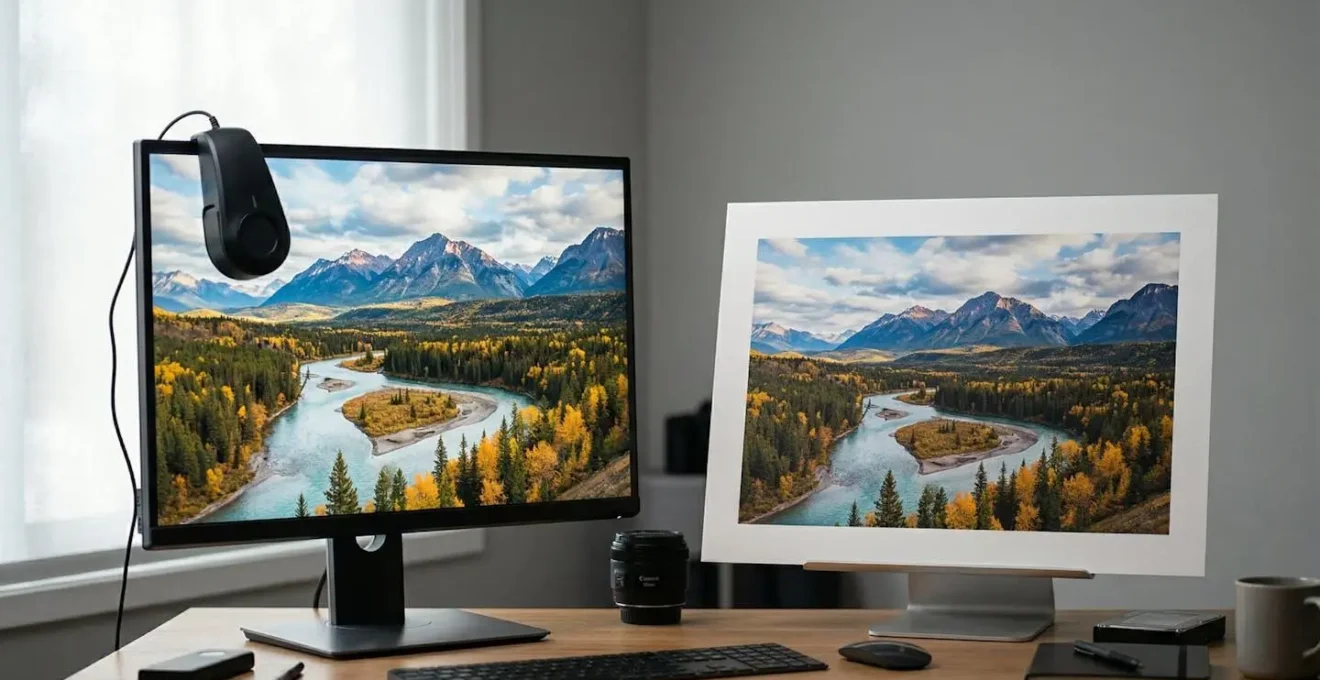
The frustrating gap between your screen and your print is not due to a single mistake, but a breakdown in the color management chain.
- Monitor calibration, color space selection, driver settings, and viewing light are all critical, interconnected links.
- Relying on default settings (Adobe Standard, factory brightness, printer-managed color) is the primary cause of inaccurate results.
Recommendation: Adopt a standardized, end-to-end workflow, treating color fidelity as a systemic process, not a series of isolated fixes.
The moment of truth for any photographer is pulling a fresh print from the tray. Yet, for many, this moment is one of profound frustration. The vibrant scene meticulously edited on screen appears dull, dark, or tinged with an inexplicable color cast on paper. This disconnect isn’t just disappointing; it’s a costly waste of ink, paper, and time. Photographers often blame their printer or assume expensive hardware is the only solution. They chase fixes by tweaking brightness, buying new paper, or blindly adjusting saturation, only to find the problem persists.
The common advice revolves around isolated actions: “calibrate your monitor” or “use the right ICC profile.” While correct, this advice misses the fundamental point. These are not independent steps but integral parts of a continuous chain. A calibrated monitor is useless if the printer driver is configured to override its instructions. A wide-gamut file is wasted if the viewing light distorts its colors. The core issue lies in a lack of workflow integrity, where a single weak link compromises the entire process from capture to final evaluation.
But what if the key wasn’t to simply perform these checks, but to build a standardized, repeatable system that eliminates variables at every stage? This guide moves beyond generic tips to establish a rigorous, frustration-free workflow. We will dissect each potential point of failure in the color management chain—from the camera’s profile to the lightbulb in your viewing area. By understanding the ‘why’ behind each step, you can construct a system that delivers predictable, accurate, and satisfying prints that finally match what you see on your monitor.
This article provides a structured approach to diagnosing and solving print-to-screen discrepancies. The following sections break down the most common failure points in the color management workflow, providing standardized procedures to ensure fidelity at every step.
Table of Contents: The Complete Workflow for Print-to-Screen Color Fidelity
- Why Does Adobe Standard Color Look Dull Compared to a Custom Profile?
- How Often Should You Recalibrate Your Monitor for Print Work?
- sRGB or ProPhoto RGB: Which Is Necessary for Inkjet Printing?
- The Printing Mistake of Letting Both Photoshop and Printer Manage Color
- Why Does Your Print Look Wrong Under Warm Living Room Bulbs?
- 8-Color vs. 12-Color: Does the Extra Ink Matter for B&W?
- Why Is Your Screen Brightness Lying to You About Print Darkness?
- Why Pigment Prints Are the Gold Standard for Collectible Photography?
Why Does Adobe Standard Color Look Dull Compared to a Custom Profile?
The color management workflow begins the moment you import a RAW file. The default profile applied by software like Lightroom is often “Adobe Standard” or “Adobe Color.” While convenient, these profiles are generic interpretations designed to work across thousands of camera models. They are, by definition, an approximation. As one expert in the Lightroom Queen community noted, Adobe’s profiles are the result of a “sort of reverse-engineering” of a camera manufacturer’s proprietary color science, not a direct replication. This means they often fail to render specific hues, like brand colors or nuanced skin tones, with complete accuracy, resulting in a “dull” or slightly off appearance compared to the camera’s own JPEG preview.
A custom camera profile, by contrast, is not an approximation; it is a precise characterization of how your specific camera sensor responds to color under a specific lighting condition. Creating these profiles using a tool like an X-Rite ColorChecker Passport involves photographing a standardized color target in the actual light you are shooting in. The software then analyzes the deviation between the captured colors and the known reference values of the target, building a profile that corrects for both the sensor’s bias and the spectral properties of the light source.
Case Study: Custom Profiling for Varied Lighting
A photographer demonstrated the power of this approach by creating distinct profiles for different lighting scenarios: “Summer Sun,” “Summer grey day,” “Summer window light,” and the same set for Winter. This meticulous process ensures that the starting point for every edit is as color-accurate as possible, far exceeding the fidelity of a one-size-fits-all Adobe profile. For professional work where color is critical, a custom profile is non-negotiable for establishing the first link in a strong color management chain.
Ultimately, relying on Adobe Standard is accepting a compromise at the very start of your workflow. For true color fidelity, building a library of custom profiles for your common shooting environments is the first and most critical step.
How Often Should You Recalibrate Your Monitor for Print Work?
A calibrated monitor is the cornerstone of any print workflow, yet its stability is often overestimated. Monitors drift over time. The phosphors and LEDs that produce the image change their output as they age and accumulate hours of use. Calibration is not a one-time setup but a required maintenance task. For color-critical work, professional standards recommend recalibration at least every 4-6 weeks. This frequency ensures that what you see on screen remains a consistent and reliable reference for your print output.
However, a simple calendar-based schedule is a blunt instrument. A more rigorous approach is evidence-based, using the validation tools built into calibration software. After your initial calibration, you can run a validation check that generates a Delta E report. Delta E is a metric that quantifies the difference between two colors; a value under 1.0 is imperceptible, while a value over 2.0 indicates a visible discrepancy. By running this check weekly or bi-weekly, you can track your monitor’s drift. You only need to perform a full recalibration when the average Delta E value exceeds 2.0, saving time while maintaining accuracy.
The age and type of your monitor also dictate the necessary frequency. A new, high-end LED monitor may be stable for months, while a 4-5 year-old monitor with an older CCFL backlight could show significant drift in as little as 1-2 weeks. Therefore, a standardized workflow involves not just calibrating, but regularly validating that calibration.
Your 5-Step Print-to-Screen Audit: Monitor Calibration
- Baseline Check: Before any critical print job, run your calibration software’s validation tool to check the current Delta E values.
- Drift Analysis: Compare the new Delta E report to the one from your last calibration. Is the average drift exceeding 2.0?
- Environment Consistency: Ensure the ambient lighting in your room is the same as when you last calibrated. Bright, uncontrolled light can invalidate your results.
- Hardware Warm-up: Always let your monitor warm up for at least 30 minutes before running a calibration or validation to ensure stable color and brightness output.
- Target Luminance Verification: Confirm your calibration target for print work is set to a luminance of 80-100 cd/m², not the factory default of 250+ cd/m².
By shifting from a rigid schedule to a data-driven validation process, you transform calibration from a chore into a precise quality control measure, ensuring your screen remains a trustworthy anchor for your print decisions.
sRGB or ProPhoto RGB: Which Is Necessary for Inkjet Printing?
The choice of color space, or “working space,” in Photoshop is a frequent point of confusion. Many photographers default to sRGB, the standard for web and most consumer devices. It’s the “safest” choice, but it is also the most limited. Think of color spaces as containers of different sizes. sRGB is the smallest container, holding the fewest number of colors. Adobe RGB (1998) is a larger container, and ProPhoto RGB is a massive one, encompassing all the colors a digital camera can possibly capture.
A common misconception is that since prints can’t display all the colors in ProPhoto RGB, it’s unnecessary to use it. This is flawed logic. The goal is to preserve as much color information as possible for as long as possible. As the experts at Photography Life state, ” Almost every photo printer on the market can print some colors outside the sRGB gamut, and even outside the Adobe RGB gamut.” Modern professional inkjet printers, with their 8, 10, or 12 ink sets, can reproduce deep cyans, vibrant greens, and rich yellows that fall well outside the boundaries of sRGB. By editing in sRGB, you are “clipping” or discarding this rich color data from your file before it even reaches the printer.
The correct workflow is to use ProPhoto RGB as your working space in Lightroom and Photoshop. This ensures you are editing with the full set of color data your camera captured. You are not throwing away any information. The conversion to the printer’s specific color space (via its ICC profile) should be the very last step in the process, handled by Photoshop’s print dialog. This approach allows the conversion algorithm to use all the available data to produce the best possible translation to the printer’s more limited, and uniquely shaped, gamut. Editing in sRGB is like packing for a long trip with only a small carry-on bag; you’re leaving valuable items behind from the very start.
For maximum fidelity, your workflow should be standardized to a 16-bit ProPhoto RGB environment. You only convert to a smaller, device-specific space at the final moment of output, whether for print or for the web.
The Printing Mistake of Letting Both Photoshop and Printer Manage Color
This is arguably the most common and destructive mistake in the entire print workflow. It occurs when a photographer correctly sets Photoshop to manage colors using a specific ICC profile, but fails to disable the printer driver’s own color management system. When both systems try to “fix” the color simultaneously, they effectively apply the color correction twice. This is known as double color management, and it invariably ruins the print.
The symptoms are predictable and consistent. As noted by printing expert John Paul Caponigro, “Double color management typically results in a print that is too light and magenta.” The image looks oversaturated, contrast is thrown off, and the colors bear no resemblance to the calibrated screen. This happens because the printer driver, unaware that Photoshop has already done the necessary conversion for the chosen paper, applies its own generic color adjustments on top of the already-corrected data. It’s a classic case of too many cooks in the kitchen.
The only correct procedure is to establish a clear hierarchy: one system is in charge, and the other is turned off. For a professional, standardized workflow, Photoshop should always manage colors. This allows you to use precise ICC profiles custom-built for your exact printer and paper combination, which are far more accurate than the printer’s generic, built-in settings. The critical step is to then navigate deep into the printer driver’s settings and find the color management section, explicitly setting it to “Off” or “No Color Adjustment.” This tells the driver to act as a dumb conduit, simply laying down ink as instructed by Photoshop, without making any of its own color decisions.
The only exception to this rule is when you do not have an ICC profile for your paper. In that rare case, you would select “Printer Manages Colors” in Photoshop and then choose the exact paper name in the printer driver, letting it use its own internal profile. But for any serious work, letting Photoshop manage color with a proper profile is the only path to predictable results.
Why Does Your Print Look Wrong Under Warm Living Room Bulbs?
You’ve done everything right: custom camera profile, calibrated monitor set to 90 cd/m², ProPhoto RGB workflow, and Photoshop managing colors with the correct ICC profile. The print comes out, and under your professional viewing lamp, it’s a perfect match. But when you take it into the living room, it suddenly looks muddy, with a yellow or green cast. The problem isn’t the print; it’s the light. This phenomenon is called metamerism, where two colors that match under one light source fail to match under another.
Human vision is adaptive, but household lighting is notoriously poor for color evaluation. Standard incandescent or warm-white LED bulbs have a low Color Rendering Index (CRI), a scale from 0 to 100 measuring a light source’s ability to faithfully reveal the colors of objects. A low CRI bulb simply does not emit the full spectrum of light required to reflect the print’s true colors back to your eye. It can make vibrant reds look dull or introduce color casts where none exist on the print itself.
A standardized workflow does not end when the ink is dry. It extends to the viewing conditions. For accurate print evaluation, you must use a controlled viewing environment. This means using a light source with a CRI of 95 or higher and a specific color temperature, typically D50 (5000K) or D65 (6500K), which are the graphic arts industry standards for daylight simulation. This is why professional print studios and galleries use specialized viewing booths or Solux bulbs. They provide a consistent, full-spectrum light that renders color accurately and serves as a neutral reference for comparing the print to the screen.
Without a controlled viewing environment, you are evaluating your prints in a color-contaminated space. Investing in a single, high-CRI D50 bulb for your primary proofing area is a relatively small cost that eliminates one of the most frustrating variables in the entire print-to-screen matching process.
8-Color vs. 12-Color: Does the Extra Ink Matter for B&W?
When it comes to black and white printing, the number of inks in a printer matters immensely, but not for the reason many people think. It’s not about the total number, but about the types of inks. Specifically, it’s about the number of dedicated black and grey inks. A basic 8-color printer might have Photo Black, Matte Black, Light Black, and Light Light Black. A high-end 12-color printer, like a Canon imagePROGRAF or Epson SureColor P-series, will add multiple shades of grey, such as Dark Grey, Grey, and Light Grey.
These extra grey inks are the key to producing truly neutral and tonally rich monochrome prints. On a printer with only a few black inks, achieving a neutral grey in the mid-tones requires a difficult balancing act called “color compositing.” The printer must mix tiny dots of cyan, magenta, and yellow ink with black ink to simulate a grey tone. This process is highly prone to producing unwanted color casts, often a slight green or magenta tint that is especially noticeable in the lighter tones. It also leads to less smooth tonal transitions, as the dithering pattern of different colored dots can become visible upon close inspection.
A printer with a dedicated set of grey inks eliminates this problem. To produce a 50% grey, it simply uses the Grey ink. For a 20% grey, it uses the Light Grey ink. This approach provides two significant advantages. First, it ensures absolute neutrality from the deepest shadows to the brightest highlights, as no color inks are needed to build the tones. Second, it produces dramatically smoother gradients and finer detail, especially in subtle textures and transitions. The printer can create a much more nuanced image when it has a full palette of monochromatic inks to work with.
So, does the extra ink matter for B&W? Absolutely. But the focus should be on the number of dedicated grey and black inks, not just the total ink count. For photographers serious about monochrome printing, a printer with at least three levels of grey ink is a non-negotiable part of a standardized, high-fidelity workflow.
Why Is Your Screen Brightness Lying to You About Print Darkness?
One of the most common complaints from photographers is, “My prints always come out too dark.” The culprit is almost always a monitor that is set far too bright. Your monitor is a transmissive display—it’s a light source, projecting light through a panel and into your eyes. A print is a reflective object—it has no light of its own and depends entirely on ambient light bouncing off its surface to be seen. This is a fundamental physical difference that creates a significant perceptual gap.
Out of the box, most monitors are set to a luminance of 250 cd/m² (candela per square meter) or even higher, optimized for watching movies or playing games in a bright room. This is completely unsuitable for print work. When you edit an image on such a bright screen, you can see deep into the shadows, and everything looks vibrant and punchy. You adjust the image until it looks perfect on this brilliant display. However, when you print that same file, the reflective paper simply cannot compete with the monitor’s light output. The shadow areas that were full of detail on your screen now appear blocked up and muddy on paper. You have been tricked by your monitor’s brightness.
It takes at least 1/3rd stop added exposure to offset the fact that a print is not back-lit like a screen.
– Backcountry Gallery Photography Forums, Monitor Calibration, How Often?
The solution is to force your monitor to more closely mimic the behavior of a print. During calibration, you must set a specific brightness target appropriate for print evaluation. The industry standard is a luminance between 80-120 cd/m². For most users in a dimly lit room, a target of 90-100 cd/m² is a good starting point. When you first set your monitor this low, it will look alarmingly dim. This is normal. You must allow your eyes to adjust for 15-20 minutes. Once adapted, you will find that you naturally edit your images to be slightly brighter to compensate, which in turn leads to prints that are no longer too dark.
This single adjustment is often the “aha!” moment for photographers struggling with dark prints. It bridges the perceptual gap between a transmissive screen and a reflective object, creating a far more reliable proofing environment.
Key Takeaways
- System over Steps: True color fidelity comes from a standardized, end-to-end workflow, not isolated fixes.
- Control Your Variables: Custom profiles, evidence-based calibration, and controlled lighting are essential to eliminate guesswork.
- Preserve Data: Work in a wide-gamut space like ProPhoto RGB and let Photoshop, not the printer, manage color conversion at the final stage.
Why Pigment Prints Are the Gold Standard for Collectible Photography?
The final link in the color management chain is the physical print itself, and not all inks are created equal. The two primary types of ink used in inkjet printers are dye-based and pigment-based. While dye inks can produce vibrant, punchy colors, they have a critical flaw: they are not archival. Pigment-based inks, on the other hand, are the undisputed gold standard for fine art and collectible photography due to their exceptional longevity and stability.
The difference lies in their physical structure. As explained in technical analyses, dye-based inks consist of tiny molecules that dissolve completely in the ink base and are absorbed into the paper’s fibers. This absorption can lead to less sharpness and makes them highly susceptible to environmental factors, especially UV light and ozone. Prints made with dye inks can begin to show noticeable fading within months if exposed to direct sunlight. Pigment inks are fundamentally different. They consist of microscopic, encapsulated particles of color that are suspended, not dissolved, in the ink base. These particles sit on top of the paper’s surface, creating a crisp image with a high Dmax (deep, rich blacks). Because the colorant is encapsulated, it is far more resistant to fading from UV light and environmental contaminants.
Case Study: The Physical Properties of Pigment vs. Dye
A comparison of the two ink types shows that dye ink behaves like sugar dissolved in water, permeating the paper but offering little protection. Pigment ink acts more like fine sand in water; the solid particles settle on the surface and remain stable. This physical stability is what gives pigment prints their museum-quality archival properties, with an industry-standard display life rating of over 200 years when paired with archival-grade papers, according to tests by Wilhelm Imaging Research.
For any photographer selling their work or creating prints meant to last for generations, there is no substitute. Choosing a printer that uses a high-quality pigment ink set is the final, crucial investment in a workflow dedicated to producing prints of enduring quality and value.