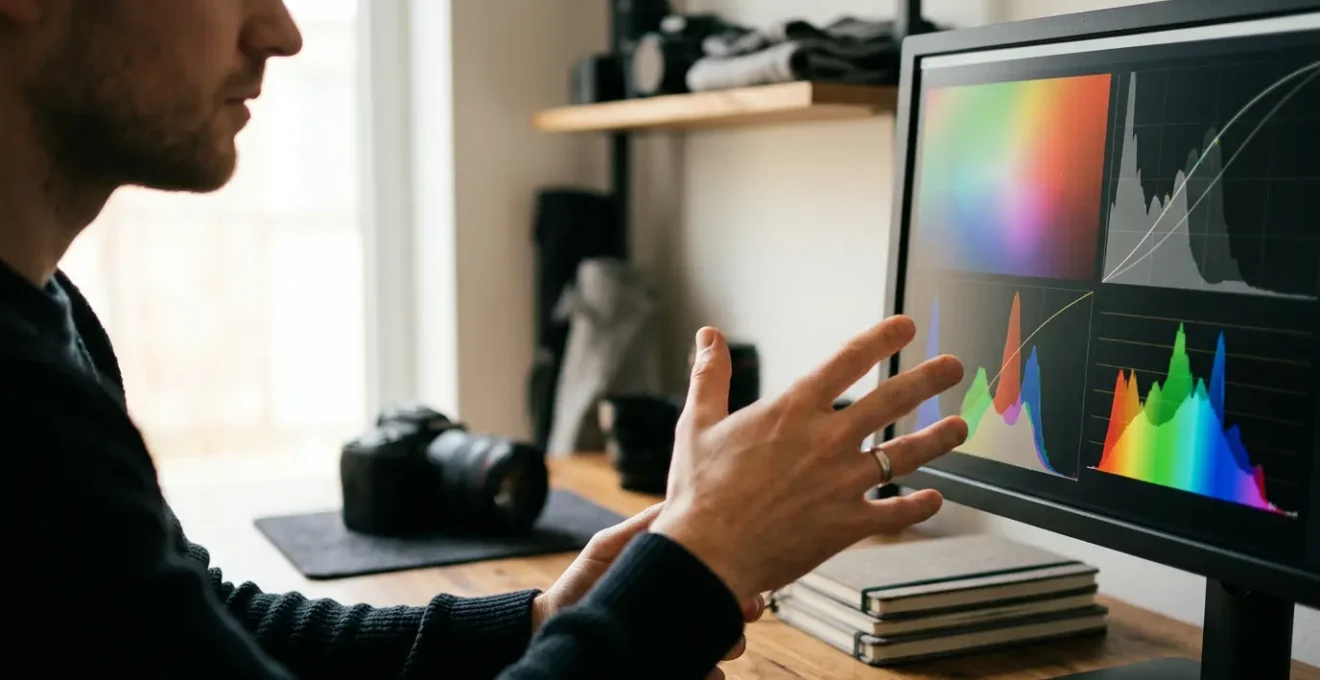
A RAW file is not a photograph; it is a dormant dataset of pure sensor information, and treating it as such fundamentally changes the post-processing workflow.
- Understanding the bit depth (e.g., 14-bit) of a RAW file is the key to why extreme shadow detail can be recovered with minimal noise penalty.
- A non-destructive workflow is paramount; premature conversion to formats like 16-bit TIFF “bakes in” adjustments, destroying the flexibility to reinterpret the original sensor data.
Recommendation: Adopt a data-centric mindset. Treat every RAW file as a digital negative, prioritizing data preservation from the moment of capture (ETTR) to long-term archiving (DNG, 3-2-1 rule).
For many photographers, the switch from JPEG to RAW is the first major step toward professional-quality images. The common wisdom is that RAW files “contain more information,” offering greater flexibility in editing. While true, this statement vastly undersells the reality. It frames the RAW file as a better version of a JPEG, when in fact, it is a completely different entity. A JPEG is an opinion; a processed, compressed, and finalized image. A RAW file, by contrast, is a collection of raw, unprocessed sensor data—a true digital negative.
The “flat” or “dull” appearance of an unedited RAW file isn’t a flaw; it’s a sign of its potential. It signifies that no destructive decisions have been made yet. The data from the sensor is preserved in a near-pristine state, waiting for interpretation. This shift in perspective from “editing a photo” to “developing a dataset” is the key to unlocking the full power hidden within your files. It’s about understanding the underlying structure of the data, not just moving sliders until it looks good.
This article moves beyond the superficial advice. We will dissect the data structure of RAW files to understand why certain extreme adjustments are possible. We will explore the technical reasons behind proper exposure techniques, debunk workflow myths that lead to data loss, and establish a robust framework for preserving the integrity of your digital negatives from capture to final print. This is not about filters; this is about data extraction.
To navigate this technical deep-dive, the following sections will guide you through the critical concepts and workflows for mastering your RAW data.
Summary: Maximizing the Untapped Potential of RAW Sensor Data
- Why Does 14-Bit RAW Allow for Extreme Shadow Recovery?
- How to Use the RAW WB Tool to Fix Mixed Lighting Creatively?
- Lossy vs. Lossless Compressed RAW: Is the Quality Difference Visible?
- The Workflow Mistake of Converting to TIFF Too Early
- When to Convert Your Proprietary RAWs to DNG for the Future?
- Why Does Pushing the Histogram to the Right Reduce Noise?
- When to Migrate Your Digital Archives to New Hard Drive Formats?
- How to Plan and Execute Your First Solo Photography Exhibition?
Why Does 14-Bit RAW Allow for Extreme Shadow Recovery?
The ability to recover seemingly lost shadow detail is one of the most celebrated features of RAW editing, but the reason lies in pure mathematics: bit depth. A JPEG file is typically an 8-bit file, meaning it can record 256 (2^8) levels of brightness per color channel. In stark contrast, a 14-bit RAW file can record 16,384 (2^14) levels. This exponential increase in tonal information is not distributed evenly; the majority of this data is dedicated to the highlight and mid-tone regions, but it provides a vast underlying dataset for the shadows.
When you “lift” the shadows in an 8-bit JPEG, you are essentially stretching a very small number of tonal values over a wider range, which inevitably leads to banding and posterization. In a 14-bit RAW file, even the darkest areas contain significantly more discrete tonal values. Lifting the shadows here reveals information that was always present in the dataset, just not visible. This is further enhanced by the linear nature of sensor data, where 14-bit RAW files can contain a 1:1 mapping of electron count to raw data values, capturing immense detail.
This principle is practically demonstrated in cameras with high ISO-invariance. Testing shows that photographers can deliberately underexpose an image at base ISO by as much as 3-5 stops to preserve highlight detail, and then recover the shadow information cleanly in post-processing. The result is an image with a signal-to-noise ratio nearly identical to one shot at a much higher ISO, effectively allowing the photographer to “change ISO in post” by leveraging the deep data reserves in the shadows of the RAW file.
How to Use the RAW WB Tool to Fix Mixed Lighting Creatively?
A common misconception is that the white balance tool’s purpose is solely corrective. In a RAW workflow, its function is far more powerful because white balance is not “baked into” the image data. Instead, it exists as a piece of metadata—a simple instruction that tells the software how to interpret the color of the underlying sensor data. This means you can change it infinitely without any degradation of the original file, opening the door for creative color grading at the most fundamental level.
When shooting in mixed lighting—for instance, a portrait with cool window light on one side and warm tungsten light on the other—a single “correct” white balance is impossible. A JPEG forces you to choose one, compromising the scene. A RAW file captures the full spectrum of light information. In post-processing, you can use local adjustment tools (like radial or gradient filters) to apply different white balance settings to different parts of the image, neutralizing each light source independently for a clean, natural look. Or, more creatively, you can push the colors for artistic effect, a technique known as split toning.
This macro shot of an editing interface visualizes the tactile process of manipulating color, where abstract gradients represent the shift from warm to cool tones, central to creative RAW editing.
A professional workflow for creative color grading often involves these steps:
- Establish a Base: Select a camera profile (e.g., Adobe Standard) to set your initial color rendering.
- Visualize Shifts: Temporarily boost saturation to better see how temperature and tint adjustments affect the colors before committing.
- Apply Split Toning: Use color grading wheels to introduce specific hues, such as a cinematic combination of cool blues in the shadows and warm oranges in the highlights.
- Blend and Layer: For ultimate control, create multiple virtual copies with different white balance interpretations and blend them using layers and masks in Photoshop.
Lossy vs. Lossless Compressed RAW: Is the Quality Difference Visible?
The primary drawback of shooting in uncompressed RAW is the massive file size, which impacts storage capacity and buffer clearing speed. To mitigate this, camera manufacturers offer various compression options. The choice between them is a critical workflow decision that balances efficiency against absolute data integrity. The main categories are Uncompressed, Lossless Compressed, and Lossy Compressed.
Uncompressed RAW is the baseline, containing every bit of data captured by the sensor with zero alteration. Lossless Compressed RAW uses algorithms to reduce file size by 20-40% without discarding any image data; the process is fully reversible, like a .zip file. Lossy Compressed RAW (often called cRAW or HE) achieves even greater size reduction (40-50%) by discarding some data it deems visually insignificant. The critical question is whether this loss is perceptible.
For most standard exposures viewed at normal sizes, the difference between a lossless and a lossy RAW file is virtually invisible. The compromise becomes apparent only under extreme editing. When pushing the exposure or recovering deep, underexposed shadows from a lossy file, you may encounter more noise or posterization artifacts than you would with a lossless file. This is because the discarded data was, in fact, part of that subtle shadow information. The following table, based on extensive analysis of RAW compression methods, breaks down the trade-offs.
| Compression Type | Bit Depth | File Size Reduction | Quality Impact | Best Use Case |
|---|---|---|---|---|
| Uncompressed RAW | 14-bit | 0% (baseline) | Maximum data retention | Fine-art landscape, architecture requiring extreme editing latitude |
| Lossless Compressed | 14-bit | 20-40% smaller | Zero quality loss, fully reversible | Professional work requiring balance of quality and storage efficiency |
| Lossy Compressed (cRAW/HE) | 12-13 bit | 40-50% smaller | Minimal visible loss in normal exposures; posterization visible in extreme underexposed shadow recovery | Wedding, sports, high-volume shooting prioritizing speed and buffer depth |
The expert consensus leans towards a pragmatic approach. As Nasim Mansurov of Photography Life notes in his analysis:
For most cameras, 14-bit lossless compressed Raw is an ideal option, but for some who don’t push their files to the edge, lossy compressed Raw is still much better than JPEG.
– Nasim Mansurov, Photography Life – Compressed vs Uncompressed RAW Options
The Workflow Mistake of Converting to TIFF Too Early
A critical error in many photographers’ workflows is the premature conversion of a RAW file to a raster format like TIFF or PSD. The thinking is often that a 16-bit TIFF is a high-quality file, so the conversion is harmless. This misunderstands the fundamental difference: a RAW file is parametric data, while a TIFF is a fixed grid of pixels. When you convert, you “bake in” all the RAW adjustments like white balance, exposure, and color rendering, losing the ability to non-destructively reinterpret them later.
The visual metaphor below contrasts the rich, flexible data of a RAW file (left) with the limited, “baked-in” nature of a TIFF (right), emphasizing the loss of editing latitude.
A professional analysis of RAW versus TIFF editing flexibility shows that even a minor white balance adjustment of +/- 500K, which is clean and natural on a RAW file, can introduce bizarre color shifts and artifacts on a 16-bit TIFF. The ability to recover highlights and shadows in a pleasing, natural way is drastically diminished once the file is rasterized. The correct professional approach is a “round-trip” workflow that preserves the RAW file as the master negative for as long as possible.
This workflow performs all global adjustments on the RAW file in an editor like Lightroom or Capture One. Only when pixel-level edits (like intricate cloning, healing, or compositing) are required is the file sent to Photoshop. The “Edit In” command creates a temporary TIFF or PSD copy with the RAW adjustments applied, but the original RAW file remains untouched underneath, always available for re-adjustment.
Your 5-Step RAW-to-TIFF Round-Trip Audit
- Global Adjustments First: Perform all foundational edits in your RAW editor: white balance, exposure, contrast, color grading, lens corrections, and initial noise reduction. The goal is to perfect the image globally.
- Generate Working Copy: Use the “Edit in Photoshop” (or similar) command. This creates a new TIFF file with all your RAW adjustments applied, acting as your canvas for pixel-level work.
- Pixel-Level Edits: Complete all destructive or localized edits in Photoshop. This includes cloning, healing, frequency separation, detailed retouching, and compositing.
- Save and Return: Save the TIFF file in Photoshop. It will appear back in your RAW editor, stacked with the original. Your master RAW file remains untouched and fully editable.
- Archive and Export: For archival, the RAW file is the most important asset. The bulky intermediate TIFF can often be deleted, as it can be recreated from the master RAW at any time if further edits are needed.
When to Convert Your Proprietary RAWs to DNG for the Future?
Every camera manufacturer has its own proprietary RAW format (.CR3 for Canon, .NEF for Nikon, .ARW for Sony). This creates a long-term archival risk: will the software of 2050 be able to read a .CR3 file from 2024? To solve this problem, Adobe created the Digital Negative (DNG) format, a publicly documented, universal RAW file format intended for long-term archival.
Converting to DNG on import offers several advantages. It can result in slightly smaller file sizes, faster performance in Adobe applications, and it embeds metadata changes directly into the file, eliminating the need for separate “.xmp” sidecar files. Most importantly, it provides a layer of future-proofing against the potential obsolescence of proprietary formats. However, some photographers are hesitant, fearing data loss during conversion or the loss of manufacturer-specific data.
A robust and popular solution is the hybrid DNG workflow. When converting, you can choose to embed the original proprietary RAW file inside the DNG. This gives you the best of both worlds: the universal compatibility and streamlined workflow of DNG, with the “escape hatch” of being able to extract the original, untouched proprietary file if needed in the future. This strategy is highlighted by the experience of working professionals.
A celebrity photographer who produces imagery for posters and promotional material delivers RAW/DNG files to retouchers without doing much to the images himself, leveraging DNG’s universal compatibility. The hybrid archiving approach embeds the original proprietary RAW file inside the DNG, offering both universal compatibility and validation of DNG with the ‘escape hatch’ of extracting the original file if needed in the future.
The decision to convert depends on your workflow. For photographers committed to the Adobe ecosystem or focused on long-term archival, converting to DNG (ideally with the original embedded) is a wise strategic move. For those who frequently use manufacturer-specific software, sticking with the original proprietary format may be preferable in the short term.
Why Does Pushing the Histogram to the Right Reduce Noise?
The technique known as “Expose To The Right” (ETTR) is a method for maximizing the signal-to-noise ratio (SNR) in a digital image. The principle is based on how digital sensors record light. As a guide on how to take good RAW photos explains, the brightest parts of an image contain the most data and the least noise, while shadows are data-poor and noise-prone. ETTR involves deliberately overexposing the image as much as possible without clipping the highlights, pushing the histogram data to the right edge.
By doing this, you capture the faint shadow details with a much stronger electronic signal. In post-processing, you then reduce the overall exposure. This action simultaneously darkens the image to its correct brightness and suppresses the noise that was captured at a lower level than the strong image signal. You are essentially “drowning out” the noise with data. The alternative—underexposing and then brightening the shadows in post—amplifies both the weak image signal and the inherent electronic noise, resulting in a visibly noisier image.
However, modern camera technology has added a layer of nuance to this classic technique. Many contemporary sensors are now so “ISO-invariant” that the noise penalty for lifting shadows on an underexposed shot is minimal. For these cameras, a perfectly exposed or even slightly underexposed image (to protect highlights) can yield a result just as clean as a traditional ETTR shot. The most significant, often overlooked danger of ETTR is clipping individual RGB color channels. For example, in a sunset photo, the overall luminance histogram might look perfect, but the red channel could be completely blown out. This results in patches of flat, textureless color that are completely unrecoverable, even in a RAW file.
When to Migrate Your Digital Archives to New Hard Drive Formats?
The digital negative is only as safe as the medium it’s stored on. Hard drives fail, data degrades silently over time (a phenomenon known as “bit rot”), and storage formats become obsolete. A professional archival strategy is not a one-time setup but an ongoing process of management and migration. The industry-standard foundation for this is the 3-2-1 backup rule.
This rule dictates you should always have:
- 3 total copies of your data.
- On 2 different types of storage media (e.g., an SSD and a traditional HDD).
- With 1 copy stored off-site (e.g., cloud storage or a drive at a different physical location).
This system protects against virtually any single point of failure, from a simple drive malfunction to a fire or theft at your primary location. Critically, data integrity must be verified during copies using software with checksum validation to ensure the replica is exact and uncorrupted.
The choice of media is also a strategic decision, balancing cost, speed, and lifespan. Relying on a single type of media is risky. A comprehensive strategy uses different types for different purposes, as outlined in this risk assessment of photography storage media.
| Storage Medium | Primary Risk Factor | Lifespan | Cost per TB | Best Use Case |
|---|---|---|---|---|
| HDD (Hard Disk Drive) | Mechanical failure from moving parts | 3-5 years | Low ($15-30) | High-capacity near-line archive backup |
| SSD (Solid State Drive) | Data loss without power over time | 5-7 years (powered) | Medium ($50-100) | Active working storage for current projects |
| Cloud Storage | Subscription costs, provider bankruptcy, security breaches | Variable (service-dependent) | Recurring ($5-15/month) | Off-site backup copy for disaster recovery |
| LTO Tape | High upfront cost, limited accessibility | 15-30 years | Very Low (after equipment investment) | Long-term cold archive for completed projects |
Regardless of the media’s condition, a professional migration schedule is essential. All working and backup drives should be replaced every 3-5 years. This proactive cycle prevents you from discovering silent data degradation only when it’s too late. Your archive is a living entity that requires active maintenance.
Key takeaways
- A RAW file is not an image, but a dataset; all editing should aim to interpret this data non-destructively.
- Mastering a “round-trip” workflow that keeps the RAW file as the master negative is essential to avoid “baking in” changes prematurely with formats like TIFF.
- Long-term data integrity requires a proactive 3-2-1 backup strategy and a regular 3-5 year migration cycle for all storage media.
How to Plan and Execute Your First Solo Photography Exhibition?
The ultimate goal of mastering the digital negative is often to create a physical object: the fine art print. Planning an exhibition is the final step in the journey from data capture to artistic statement. This process brings all the preceding technical concepts into service of a tangible, aesthetic goal. The flexibility of the RAW file is what allows a photographer to take a diverse set of images, shot under varied conditions, and unify them into a cohesive body of work for exhibition.
A powerful exhibition concept can be to reveal this very process. One narrative idea is “The Art of the Unseen,” where each final masterpiece is displayed as a diptych alongside a small, flat, unedited print of the original RAW file. This educates the viewer on the transformative power of post-processing and highlights the artist’s vision in translating raw data into a compelling image. The technical workflow to achieve this is exacting.
The preparation for printing from RAW files for an exhibition is a meticulous process that bridges the digital and physical worlds:
- Calibration is Non-Negotiable: Before any editing begins, the monitor must be calibrated for print output using a hardware calibration tool (like a Spyder or i1Display) to ensure what you see on screen matches the final print.
- Simulate the Final Product: Use the “soft-proofing” feature in your RAW editor to simulate how the image will look on a specific paper and ink combination. This helps prevent surprises, like colors shifting or shadows blocking up on a matte paper.
- Impose a Unified Aesthetic: Use the flexibility of RAW adjustments to impose a consistent color palette, contrast style, and overall mood across images that may have been shot in very different lighting conditions.
- Match Paper to Subject: Material selection is part of the art. A high-gloss paper might be chosen for a high-dynamic-range landscape to maximize impact, while a soft, matte cotton rag paper might better suit an intimate portrait.
- Prepare the Final File: For maximum print quality, the final step is to export the fully edited image from the master RAW file as a full-resolution, 16-bit TIFF in a wide-gamut color space like ProPhoto RGB.
Ultimately, a successful exhibition print is the physical manifestation of a well-managed digital workflow. It is the proof that by treating the RAW file as a dataset from the very beginning, the artist retains maximum control to realize their final vision.
Begin today by reviewing your own workflow. Audit your backup strategy, reassess your use of file formats, and start treating every shutter click not as the end of the photographic process, but as the beginning of the data development process.