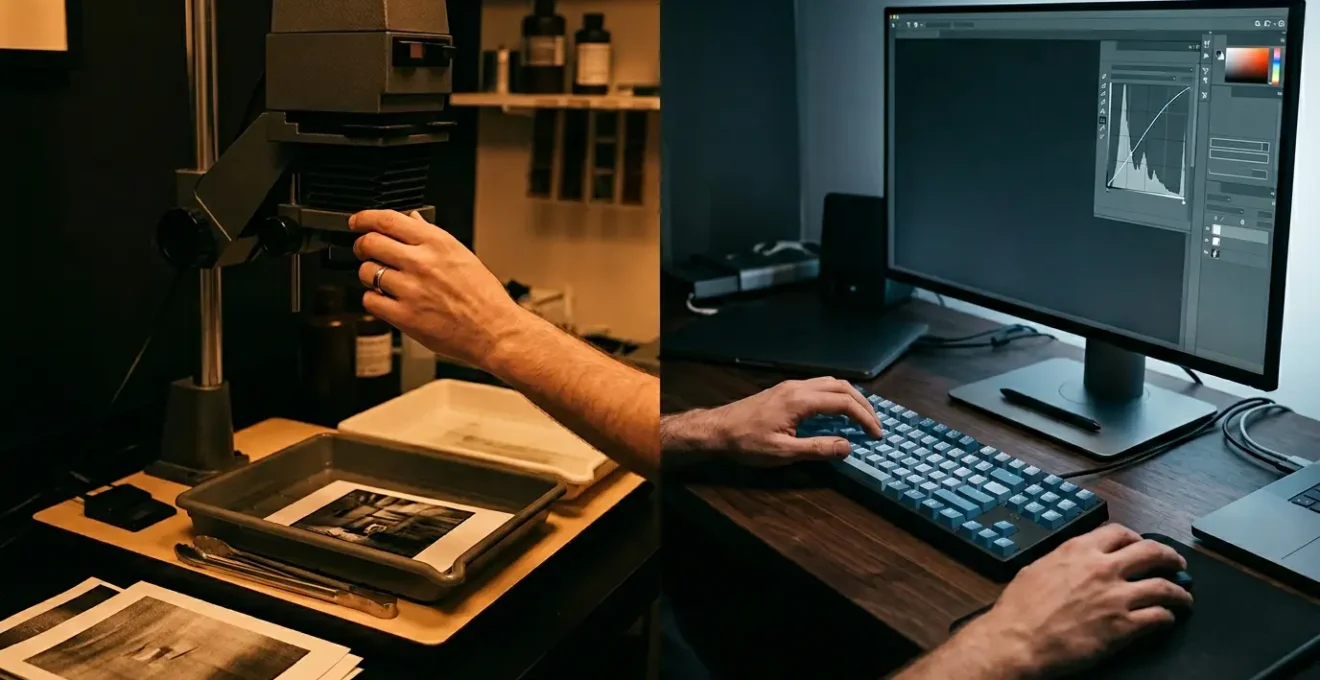
Recreating the soul of film in digital files isn’t about using presets; it’s about adopting the intentionality of a master printer.
- True artistry comes from consciously sculpting light and tone, not just mimicking a look.
- Techniques like local contrast and luminosity masking give you the deliberate control that defined darkroom craft.
Recommendation: Stop thinking of your RAW file as an image and start treating it as a ‘digital negative’—a canvas of potential that demands thoughtful interpretation.
In an era of pixel-perfect sensors and flawlessly sharp lenses, many photographers find their images possess a frustrating paradox: they are technically perfect, yet emotionally sterile. The pursuit of digital perfection often leads to a clean, but soulless, aesthetic. In the search for character, many turn to one-click presets and automated filters, hoping to instantly inject the warmth and grit of analog film. While these tools have their place, they often miss the fundamental point of what made darkroom prints so compelling.
The magic of a masterfully crafted silver gelatin print didn’t come from a formula, but from tonal intentionality. It was born from hours spent in the dim red light, where every decision—to dodge a highlight, burn in a shadow, or apply a chemical toner—was a deliberate, artistic choice. The goal wasn’t just to reproduce a scene, but to interpret it, to guide the viewer’s eye, and to evoke a specific emotion. This philosophy of hands-on, thoughtful manipulation is the true ‘soul’ of the darkroom.
But what if the key to breathing life into our digital files isn’t about mimicking the look of film, but about adopting the *mindset* of a darkroom artisan? This guide will not give you a list of filter settings. Instead, it will walk you through foundational darkroom concepts and demonstrate how to apply their underlying principles with the precision of modern digital tools. We will explore how to move beyond automated adjustments and begin sculpting with light, making every tonal choice a conscious act of creation.
This article provides a structured path to infuse your digital workflow with the deliberate artistry of traditional techniques. The following sections break down key concepts, from mastering contrast to interpreting the full potential of your RAW files.
Table of Contents: A Digital Artisan’s Guide to Darkroom Techniques
- Why Is Local Contrast Superior to Global Contrast for Drama?
- How to Color Grade Highlights and Shadows Independently?
- Luminosity Masks or Color Range: Which Selects Highlights Better?
- The HDR Mistake That Creates Glow Around Trees
- In What Order Should You Apply Noise Reduction and Sharpening?
- How to Replicate the Gum Bichromate Look Digitally?
- Why Do Crushed Shadows Destroy the Emotional Impact of Your Image?
- How to Maximize the Hidden Data in Your RAW Files?
Why Is Local Contrast Superior to Global Contrast for Drama?
Global contrast adjustment—the simple act of making all highlights brighter and all shadows darker—is a blunt instrument. It affects the entire image uniformly, which can create a punchy but often flat and unsophisticated result. Traditional printers understood that true drama comes from selective vision. They didn’t just want contrast; they wanted to direct the viewer’s attention. This is the domain of local contrast, the art of manipulating brightness and darkness in specific areas to enhance texture, create separation, and guide the eye through the frame.
This technique, known as dodging (lightening) and burning (darkening), was elevated to an art form by masters of the craft. As noted by photography historians, Ansel Adams elevated dodging and burning to an art form, using it to realize his “visualization” of the final print. Instead of a global change, he would meticulously sculpt the image, giving certain elements prominence while letting others recede. This adds a sense of three-dimensionality and narrative flow that a simple contrast slider can never achieve. The modern equivalent involves using tools like adjustment brushes or radial filters with a focus on enhancing micro-contrast, texture, and clarity in very specific regions.
Look at the surface of a physical print. The way light catches the paper’s texture and the sharpness of an edge is what gives it a tangible quality. Applying local contrast digitally helps to replicate this tactile sensation. You are not just making the image “pop”; you are defining the relationships between different elements, creating a visual hierarchy that tells a more compelling story.
W. Eugene Smith’s ‘Schweitzer with lamp at his desk’ – 5 Days of Printing
An excellent example of local contrast mastery is W. Eugene Smith’s photograph ‘Schweitzer with lamp at his desk’ from his 1954 photo essay. The image took five days to produce through meticulous dodging and burning in order to reproduce the tonal range of the scene, which ranged from a bright lamp to dark shadow. This demonstrates how local manipulation creates depth and detail that would be impossible to achieve with global adjustments alone, showcasing true tonal intentionality.
How to Color Grade Highlights and Shadows Independently?
The practice of coloring highlights and shadows separately, known digitally as “split toning,” is not a modern invention. It has deep roots in the chemical darkroom, where different toners were used to alter the color of the silver in the print, often with different effects on the light and dark parts of the image. The goal was to add emotional tonality, enhancing the mood of a photograph beyond simple black and white. For example, historical records of darkroom chemistry show how different chemicals imparted unique color signatures; sepia created shades from light yellow to brown, selenium produced light blue or purple colors, and gold tone provided options from blue to red.
Today’s digital tools give us unparalleled control over this process. We are no longer limited by a few chemical options. The core principle, however, remains the same: assigning different hues to the highlights and shadows to create color harmony or deliberate color contrast. The classic “cinematic” look of orange or teal in the shadows and a complementary warm tone in the highlights is a popular application, but the creative potential is far greater. You can use it subtly to introduce the cool blues of a vintage film stock into the shadows or add a soft, golden warmth to the highlights of a portrait to evoke nostalgia.
The key to mastering split toning is subtlety and purpose. The effect should feel integrated, not applied. Ask yourself what emotion you want to convey. A cold, moody night scene might benefit from blues and purples in the shadows, with highlights kept neutral to avoid an unnatural look. A warm, sun-drenched landscape might be enhanced by adding a gentle orange to the highlights and a complementary cool tone to the shadows to create a more vibrant, dynamic feel. It’s an exercise in emotional tonality, where color becomes an active part of the narrative.
Luminosity Masks or Color Range: Which Selects Highlights Better?
To perform the precise local adjustments that defined darkroom mastery, you need an equally precise way to select parts of your image. When dealing with complex areas like a bright sky seen through tree branches, tools like the Magic Wand or even Color Range can be clumsy. They often create harsh, artificial-looking edges. This is where luminosity masks are vastly superior, especially for selecting highlights. As the experts at Phlearn explain, luminosity masks are tools you can use in Photoshop to show or hide areas of an image based on the brightness of that area. This is the crucial difference.
Color Range selects pixels based on their color, which can be problematic. For instance, a white cloud and a white specular highlight on a car might be the same “color” but have vastly different luminance values and textures. Luminosity masks, on the other hand, create selections based purely on tonal values. A mask for “brights” will select all pixels of a certain brightness level, regardless of their color. This results in selections that are inherently photographic and organic, with natural feathering and transitions that mirror the way light behaves in the real world.
This precision is indispensable for tasks like exposure blending, where you combine multiple shots of the same scene to capture a full dynamic range. While automated HDR software can do this, it often produces artifacts. By using luminosity masks, you can manually paint in the perfectly exposed sky from one file into the perfectly exposed foreground of another, with a seamless, undetectable transition that preserves natural color and detail. It is the ultimate expression of digital negative interpretation, giving the photographer complete and nuanced control.
Manual Exposure Blending vs HDR Using Luminosity Masks
Landscape photographer Greg Benz is a prominent advocate for this technique. He demonstrates that luminosity masks offer superior control for exposure blending compared to automated HDR. The technique allows photographers to blend a darker exposure to restore beautiful color and details in highlights with unprecedented control, making stunning images from dramatic light while avoiding the typical HDR artifacts and halos that plague automated methods.
The HDR Mistake That Creates Glow Around Trees
One of the most common and telling signs of amateur post-processing is the dreaded “HDR glow” or “halo” effect, especially visible around trees against a bright sky. This artifact is a direct result of tone mapping algorithms in automated HDR software failing to properly blend areas of extreme contrast. When the software tries to darken the bright sky while simultaneously brightening the dark tree branches, its blending algorithm gets confused at the high-contrast edges, creating an unnatural, glowing border. It’s a clear failure of a global process trying to solve a local problem.
This mistake fundamentally misunderstands the nature of light. In reality, there is no glowing outline separating a dark object from a bright background. This artifact instantly breaks the viewer’s immersion and screams “over-processed.” The problem lies in relinquishing control to an algorithm that lacks the selective vision of a human artist. The software cannot understand that the edge between a leaf and the sky needs to be crisp and defined.
The solution, once again, lies in the precise, manual control offered by luminosity masks. By creating a perfect, self-feathering mask of the sky, you can darken it independently without affecting the trees. There is no clumsy algorithm, only your direct, intentional adjustment. This is why, according to professional landscape photography workflows, luminosity masking has a steeper learning curve than HDR, but with greater control comes results that are often more nuanced and free of such distracting artifacts. Avoiding the HDR glow is a powerful first step toward making your processing invisible and your images more believable.
In What Order Should You Apply Noise Reduction and Sharpening?
In the digital darkroom, workflow sequence is just as critical as the adjustments themselves. One of the most fundamental rules concerns the relationship between noise reduction and sharpening. The unwavering principle for any digital artisan is: apply noise reduction first, and apply sharpening last. This order is non-negotiable for achieving a clean, high-quality final image, and the logic is straightforward.
Noise reduction algorithms work by analyzing the image to identify and smooth out random, non-detail pixels (the noise). If you sharpen the image *before* noise reduction, you are essentially enhancing everything, including the unwanted noise. This makes the noise more pronounced and textured, making it much harder for the noise reduction software to distinguish it from actual fine detail. You risk either leaving sharpened noise behind or, in an attempt to remove it, smearing away real detail that the algorithm now mistakes for noise.
By applying noise reduction at the beginning of your workflow, you are providing a clean canvas for all subsequent adjustments. Once the noise is managed, you can proceed with your creative edits—contrast, color grading, dodging, and burning. Sharpening should be the very final step. Why? Because the amount of sharpening required can vary depending on the intended output. An image destined for a large fine-art print needs a different level and type of sharpening than one that will be viewed on a small smartphone screen. Applying it last gives you maximum control to optimize the final output for its specific medium without affecting the integrity of the underlying image data.
How to Replicate the Gum Bichromate Look Digitally?
The gum bichromate process is one of the most beautiful and painterly alternative photographic processes from the 19th century. It is a contact printing method where a mixture of watercolor pigment, gum arabic, and a light-sensitive dichromate is coated onto paper and exposed to UV light. The result is not a sharp, photographic image in the modern sense, but a soft, textural, and often multi-layered piece that blurs the line between photograph and painting. Each print is unique, bearing the hand of its creator through brush marks and pigment choices.
Replicating this look digitally requires moving beyond simple filters and embracing a layered, textural approach. The essence of the gum bichromate aesthetic lies in its imperfections, its visible layers of color, and its deep connection to the paper it’s printed on. It’s not about perfect tones but about rich, tactile surfaces. The key is to build the image in passes, just as a traditional printer would have done, applying one color layer at a time.
This process demands a shift in mindset from technical correction to artistic construction. You are no longer just “editing” a photo; you are building an object, albeit a digital one. This involves sourcing high-quality paper textures, understanding how to blend them convincingly, and using masks to “paint” layers of color on top of your base image. It is a perfect exercise in digital artisanry.
Your Action Plan: Digitally Replicating the Gum Bichromate Effect
- Source Analysis: Gather reference images of real gum bichromate prints. Study their color palettes, edge imperfections, and how the pigment sits on the paper.
- Base Image Preparation: Convert your source photo to black and white. Adjust contrast to create a strong but not overly harsh foundation, ensuring good detail in midtones.
- Texture Integration: Find a high-resolution scan of watercolor or textured art paper. Place it on a layer above your image and use a blending mode like ‘Multiply’ or ‘Overlay’. Adjust opacity for a believable effect.
- Color Layering: Create separate ‘Solid Color’ adjustment layers for each pigment (e.g., a cyan, a magenta, a yellow). Invert their masks to black and, using a soft, textured brush, paint the color back into the desired areas, mimicking the layered application of pigment.
- Finishing Touches: Add subtle imperfections. Introduce a slight “bloom” or glow around highlights and slightly soften the overall focus. The goal is to break the digital perfection.
Why Do Crushed Shadows Destroy the Emotional Impact of Your Image?
In digital photography, there’s a common tendency to push shadows to pure, featureless black. This is known as “crushing the shadows.” While it can create a high-contrast, graphic look, it often comes at a significant cost: the destruction of emotional depth and realism. Shadows are not voids; in the real world, they are filled with subtle detail, reflected light, and nuanced color. When you reduce them to a flat, black mass, you create a digital void that feels unnatural and jarring to the human eye.
Think of a dark forest scene. The shadows under the trees are not pure black. They contain the deep greens of moss, the rich browns of the earth, and the cool blues of reflected light from the sky. Preserving these details provides a sense of place and atmosphere. Crushing them removes that information, flattening the image and robbing it of its immersive quality. This is where the darkroom printer’s tonal intentionality is crucial. They would decide precisely how much detail to retain in the shadows to maintain mood without sacrificing believability.
Furthermore, open shadows with detail help guide the viewer’s eye gently through the composition, rather than halting it abruptly at a wall of black. As photographer Harry Guinness explains, this is a key part of visual storytelling:
By selectively brightening and darkening different areas, the photographer can get the viewer to look where they want. It’s a powerful way to increase the impact of your photo.
– Harry Guinness, How-To Geek
Unless you are aiming for a specific, highly graphic, or silhouetted effect, you should treat your shadows with respect. Use the tone curve or levels adjustments to set a black point that is deep and rich, but not so low that it clips away all the valuable atmospheric information hiding in the darkest parts of your digital negative.
Key Takeaways
- Local contrast guides the eye and sculpts form; global contrast simply flattens the story.
- Luminosity masks offer the ultimate precision for organic selections, far surpassing automated tools like HDR in quality and control.
- The correct workflow order (Noise Reduction → Creative Adjustments → Sharpening) is non-negotiable for clean, professional results.
How to Maximize the Hidden Data in Your RAW Files?
A RAW file is the most valuable asset a digital photographer has. It is not an image; it is the digital negative. It contains all the unprocessed data captured by your camera’s sensor, offering immense flexibility for interpretation. Maximizing this hidden data is not about cranking every slider to 100 to reveal every last detail. It’s about making conscious, deliberate choices, much like Ansel Adams did with his revolutionary Zone System.
The Zone System was a method for controlling the tonal range of a print by mapping the brightness values of a scene to specific “zones,” from pure black to pure white. As Adams himself described it, the Zone System provides photographers with a systematic method of precisely defining the relationship between the way they visualize the photographic subject and the final results. The goal was complete tonal control. We can apply this same philosophy to our digital negative. Before you touch a single slider, visualize the final image. What is the most important part of the story? What should be bright and full of detail? What should be dark and moody?
Instead of blindly recovering shadows and highlights, ask yourself *why*. Should that shadow be opened up to reveal detail, or does its darkness serve the composition? Should that highlight be pulled back to show cloud texture, or does its brightness create a sense of powerful light? Maximizing your RAW file is an act of interpretation, not brute-force data extraction. It’s about using the vast amount of information at your disposal to serve your artistic vision, carefully placing the tones where you want them to create the intended emotional impact.
Start applying these principles to your own images today. Open a RAW file, but instead of moving sliders immediately, take a moment to visualize the final print. Decide on your intent, and let that guide every adjustment you make to transform your digital processing into a true art form.